How to issue EMD services in Amadeus and Galileo is a must-know skill for travel agents. Whether you’re adding baggage, seats, meals, or other paid services, knowing the correct commands ensures your PNRs are accurate and compliant. In this guide, we will show you exactly how to issue EMD services in both Amadeus and Galileo, with real examples and tips for daily ticketing tasks.
Working With EMD Services in Amadeus
When you want to check what services the airline offers for the passenger, here’s the usual flow most agents follow:
1. View all available services
FXKThis shows you what the airline allows for that booking — baggage, seats, meals, sports equipment, etc.
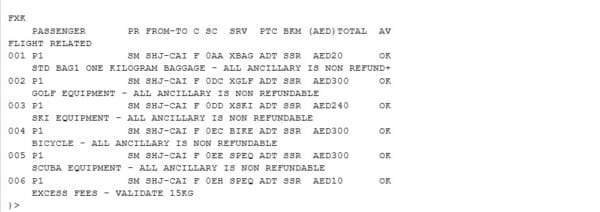
2. Choose a service and let Amadeus create the TSM
FWK3Replace “3” with the actual service line number. Amadeus will automatically open a TSM for the selected service.
3. Display the TSM to review it
TQMYou can double-check the amount, service code, and everything before you issue.
4. Add your form of payment
TMI/M{TSM number}/FP-CASHExample:TMI/M1/FP-CASH
5. Save your actions
RFPAX+ER6. Issue the EMD
TTM/M{TSM number}That’s it — the EMD is issued and linked to the PNR.
Handling Paid Services in Galileo
Galileo’s flow is slightly different but just as straightforward.
1. Display available services
FQ/DAS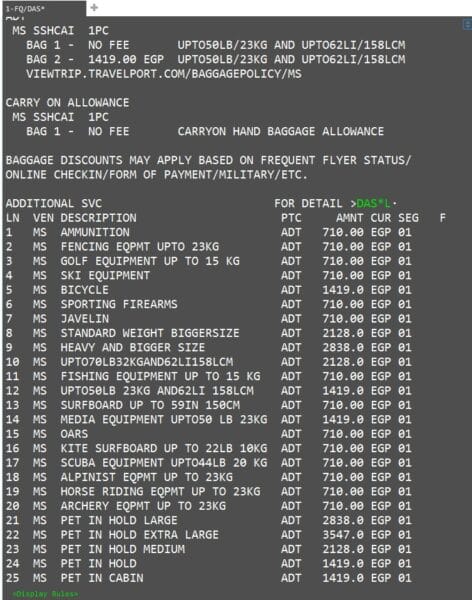
2. View more details about a specific service
DAS*L1This shows additional information about service line 1.
3. Choose a service from the list
DAS01L14. Save your PNR
R.PAX+ER5. Display the saved service
*DAS6. Issue the EMD
EMDI/SM1/IC12345678900/FSWhere:
- SM1 = service number
- IC12345678900 = associated ticket number
- FS = form of payment (cash)
Read also :