How to Display Ticket Penalties in Amadeus: FQD & FQN Commands Guide
In the fast-paced world of travel agencies, issuing a ticket is just the beginning. The real expertise lies in understanding the fine print — specifically, the change fees, cancellation penalties, and No-Show rules attached to that ticket.
Amadeus provides a powerful suite of commands to drill down into these conditions. However, many agents struggle with retrieving historical fare rules or interpreting the cryptic outputs — and this often leads to costly ADM risks for travel agencies.
In this guide, we will walk through a real-world example step by step. We will take a specific ticket, locate its exact fare basis in the system (even if it was issued months ago), and extract the precise penalty structure to communicate clearly with the passenger.
Part 1: Decoding the Ticket Data (The Starting Point)
Let’s examine the Ticket (TWD) we are working with:
TKT-7171126023317       RCI-                     1A  LOC-BUD4KJ
 OD-SHJCAI  SI-      FCPI-1   POI-ROOTSITE  DOI-29Jul26  IOI-ROOTSITE
   1.MOUSSA/MAHMOUD                                      S A
 1 OSHJ MS 404    H 22JUN1315 OK HSAVR           A   22JUN1614 30K
    CAI
FARE   F  AED          750
TOTALTAX AED          690
TOTAL    AED         1440
Key Information Extracted
- Itinerary (OD): Sharjah (SHJ) to Cairo (CAI)
- Airline: Egyptair (MS)
- Flight: MS 404
- Travel Date: 22 June 2027 (22JUN27)
- Booking Class: H (Economy)
- Fare Basis: HSAVR — this is the “secret code” we need
- Issue Date (DOI): 29 July 2026 (29Jul26) — crucial note: this ticket was issued almost a year before travel!
Part 2: Finding the Exact Fare (The FQD Command)
Our mission is to find this specific HSAVR fare basis in the current Amadeus fare rules system to verify its rules. Since the ticket was issued in the past, we must tell Amadeus to look back at the historical issue date.
Command Breakdown
- FQD: Fare Quote Display (the primary search command)
- SHJCAI: Origin and Destination
- /AMS: Airline MS (Egyptair)
- /D22JUN27: The travel date
- /CH: Class H
- /R,29Jul26: Issue date (29Jul26) — without this, you will see today’s fares, which are likely different!
Automatically Generate Your FQD Command from the Ticket
In our previous example, we manually extracted the ticket details (route, airline, booking class, and issue date) to build the FQD command. While this method is accurate, it can be tedious — especially when dealing with complex itineraries or processing a high volume of bookings.
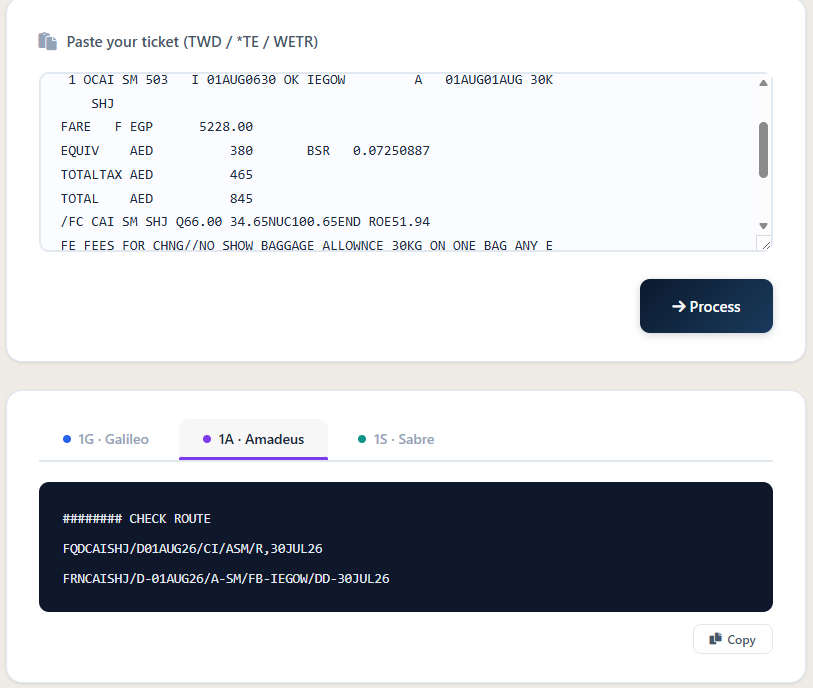
This is where the GDS Farebase Generator tool from gdshub.pro comes to the rescue. It transforms raw ticket data into a ready-to-use search command with a single click.
⚡ GDS Farebase Generator
Paste your raw TWD ticket data and instantly generate the exact FQD command — no manual typing, no qualifier errors.
Open Farebase Generator →How the Tool Works
- Copy the raw ticket data from the TWD command, including all flight details, passenger information and fare lines.
- Paste the entire text into the designated field on the tool’s page.
- Click the “Process” button — the tool automatically extracts the OD, airline, flight number, booking class, fare basis and DOI, then generates a complete FQD command with all necessary qualifiers.
Why This Tool Is a Game-Changer
- Saves Valuable Time: No more manual typing or memorising complex qualifier structures.
- Eliminates Errors: Reduces the risk of entering a wrong date or forgetting a critical qualifier like
/R,for the issue date. - Multi-GDS Support: Works seamlessly with ticket data from Amadeus, Galileo and Sabre.
- Free & User-Friendly: No login, no fees — just paste, click and copy the output.
The Output
Amadeus returns a list of 3 fare bases. We are looking for number 02:
LN FARE BASIS    OW   EGP  RT   B PEN  DATES/DAYS   AP MIN MAX R
01 HAPEX          750  750 1500   H 40USD  70USD  22JUN27/22JUN27   4D  8D  M
02 HSAVR          750  750 1500   H 40USD  70USD  22JUN27/22JUN27   21D  25D  M
03 HPRMO          750  750 1500   H 40USD  70USD  22JUN27/22JUN27   17D  26D  M
Part 3: Drilling Down into Penalties (The FQN Command)
To see the actual rules, conditions and penalty breakdowns, we use the Fare Notes command. We want only the penalties, so we append the *PE qualifier.
What This Means
- FQN: Fare Quote Notes
- 2: Selects line number 2 from our previous FQD list (HSAVR)
- *PE: Displays only the Penalties section
The Output
*** FARE RULES DISPLAY (AMADEUS) ***
FCL: HSAVR  TRF:   RULE: MS  BK: H
PTC: ADT-ADULT  FTC: SIP-ONEWAY INSTANT PURCHASE
FARE DATES
EFF: 29Jul26   DIS: 29Jul27

PE.PENALTIES

CANCELLATIONS
    ANY TIME
      CHARGE USD 70 FOR CANCEL/REFUND.
      CHARGE USD 90 FOR NO-SHOW.

CHANGES
    ANY TIME
      CHARGE USD 40.
      WAIVED FOR DEATH OF PASSENGER OR FAMILY MEMBER.
      CHARGE USD 90 FOR NO-SHOW.

NOTE
    NO-SHOW MEANS 24 HOURS BEFORE DEPARTURE TIME
    YQ NON-REFUNDABLE TAX
Detailed Breakdown of the Penalties
Here are the three penalty scenarios you must clearly communicate to the passenger.
Change Fee
Applied when the passenger changes the flight date or time.
Cancellation Fee
Applied when the passenger cancels the entire ticket for a refund.
No-Show Penalty
Applied when the passenger fails to cancel 24 hours before departure.
Cancellation / Refund Fees
- If the passenger cancels any time before departure, the penalty is $70.00.
- If the passenger simply does not show up (No-Show), the penalty increases to $90.00. A No-Show is typically determined within 24 hours before departure, although the exact timeframe depends on the airline’s policy.
Change / Rebooking Fees
- Changing the flight or date any time before departure costs $40.00.
- Humanitarian Waiver: This fee is waived entirely in the event of the death of the passenger or an immediate family member (documentation required).
- No-Show Rebooking: If you try to change the ticket after the passenger missed the flight (No-Show), the penalty is $90.00.
Critical Notes (The Fine Print)
Part 4: Mastering Advanced Qualifiers (Pro-Level Commands)
Amadeus offers a rich library of qualifiers to refine your FQD searches. Here is a cheat sheet for every agent.
1 Airline Specific Filters
/AAF,MS — fares for a specific airline (e.g., Egyptair)/AAF,KL,SK — allows up to 3 airlines simultaneously
Use when comparing fares across specific carriers.
2 Date Mastery (Crucial for Historical Queries)
/D10SEP — fares for a specific future date/D10SEP* — exact outbound travel date (one-way)/D10SEP*15SEP — exact outbound and return dates/D**30SEP — range from today to a future date/R,29Jul26 — issue date for historical fares
Essential when checking old tickets or comparing fare options.
3 Cabin Class Targeting
/KF — First Class/KC — Business Class/KW — Premium Economy/KY — Premium Economy + Economy
Narrows the fare search to the cabin you’re pricing.
4 Corporate & Unpublished Fares
/R,UP — published and unpublished fares/R,U000001 — fares for a specific corporate code/R,-INF — infant fares/R,-CHD — child fares
Reveals private deals and passenger-type-specific fares.
5 Currency and Tax Adjustments
/R,NUC — fare in Neutral Units of Construction/R,FS-USD — force display in a specific currency/R,WT — remove default taxes (base fare only)
Useful for manual calculations and cross-currency comparisons.
Part 5: Golden Tips for Applying This in Your Daily Work
Based on the exact case we just solved, here are 4 professional insights to ensure you never misquote a penalty.
1. Always Match the Issue Date
In our example, the ticket was issued on 29JUL26 but travels on 22JUN27. If you query without /R,29Jul26, you will likely see a different fare basis or a higher/lower penalty. Always use the DOI (Date of Issue) when checking old tickets.
2. Differentiate “Change” vs. “Cancel”
Clients often confuse these. Clearly state: “Changing your date costs $40, but canceling the entire ticket costs $70. If you just miss the flight, it costs $90.”
3. Warn Clients about the YQ Tax Trap
Our example explicitly states YQ NON-REFUNDABLE TAX. Before telling a client their refund amount, manually subtract the YQ value from the total fare. They will not get this back.
4. Use Shortcuts to Save Time
Instead of typing FQN and scrolling through pages of generic fare rules, use the qualifiers below to jump directly to the relevant section:
FQN*PE— PenaltiesFQN*TC— Ticketing ConditionsFQN*AP— Advance Purchase
Knowledge Is the Ultimate Service Differentiator
Mastering the art of displaying ticket conditions and penalties in Amadeus is not just about typing commands; it is about building trust with your clients. By using FQD with date qualifiers (/R,) and dissecting the output with FQN*PE, you can confidently answer any client query regarding change fees or refunds.
Remember, a well-informed agent prevents disputes. Always translate the technical Amadeus output (like USD 70 FOR CANCEL) into plain English for your passenger, highlight the No-Show rule (24 hours), and always mention the non-refundable taxes. This level of transparency ensures you remain the go-to expert in the competitive travel industry.
Frequently Asked Questions
What is the FQD command in Amadeus?
/R, qualifier with the original issue date retrieves historical fares for tickets issued in the past.What is the FQN command in Amadeus?
How do I check penalties for an old ticket in Amadeus?
/R, qualifier followed by the original issue date (e.g., /R,29Jul26). Without this qualifier, Amadeus displays today’s fares, which may have different rules. Then use FQN with the line number and *PE to display only the penalties.What does No-Show mean in Amadeus fare rules?
What is a non-refundable YQ tax?
How do I display only penalties in Amadeus?
*PE qualifier. For example, FQN2*PE displays only the penalties section for fare line 2, saving you from scrolling through generic ticketing conditions and advance purchase rules.What is the difference between a change fee and a cancellation fee in Amadeus?
📚 Related Guides
Practise FQD & FQN in a Real Amadeus Simulator
Create a free GDS HUB account and practise retrieving fare rules, penalties and No-Show conditions in a safe simulated Amadeus environment — no live data, no risk.
Start Practising Free →


