Galileo is one of the most widely used GDS platforms in the travel industry, and knowing the right Galileo Commands at the right moment is what separates a fast agent from a slow one. This complete reference guide covers every essential Galileo command — from signing on and encoding cities, through availability, selling, PNR fields, queues, fares, ticketing and EMD issuance.
Whether you are new to the system or brushing up for certification, keep this page bookmarked. Every entry below is written in practical, copy-ready syntax so you can use it directly at your terminal.
How to Use This Galileo Commands Reference
Galileo commands are built around short mnemonic entries. Once you learn the pattern, most entries become intuitive — A for availability, N for sell, P for phone, F for form of payment, T for ticketing, and so on.
This guide is organised into 15 logical groups so you can jump straight to what you need mid-booking:
- Sign-on, encode/decode and timetables — the foundation entries used on every session.
- Availability and selling — checking flights and building the itinerary.
- PNR fields — name, phone, ticketing arrangement, form of payment, received from.
- SSR, OSI, APIS and mileage — service and compliance elements.
- Queues, retrieval and history — managing and tracing bookings.
- Fares, fare quotes and manual fare builds — pricing the booking correctly.
- Ticketing, E-tickets and EMDs — issuing, voiding, refunding and reissuing documents.
If you are new to Galileo, start with our step-by-step walkthrough: how to create a PNR in Galileo step by step. For a deeper structural overview, read the Galileo GDS guide: smart agent secrets.
1. Signing On and Off to Galileo
Session BasicsEvery Galileo session begins with a sign-on entry and ends with a sign-off. Use the correct PCC format when signing in from a branch office, and move between work areas with SB when you need to handle multiple bookings in parallel.
| Command | Description |
|---|---|
| SON/ZXX | Sign on (XX = your initials) |
| SON/ZXXXX/XX | Sign in on branch PCC (XXXX = PCC in which sign-on was created) |
| SB | Change from work area A to B (there are 5 work areas: A, B, C, D, E) |
| SOF | Sign off |
2. Encode and Decode Commands
Reference DataEncode and decode entries let you convert between names and codes for cities, airlines, countries and airports. They are used constantly during PNR building and fare quoting.
| Command | Description |
|---|---|
| .CEDubai | Encode city Dubai |
| .CDDXB | Decode city Dubai |
| .CRAUH | Detailed airport record for AUH |
| .AEEGYPTAIR | Encode airline Egypt Air |
| .ADLH | Decode airline LH |
| .AD*077 | Decode airline from three-digit numeric code |
| .LEKuwait | Encode country (land) Kuwait |
| .LDKW | Decode country code KW |
For a dedicated tutorial with more examples, read how to master Galileo encode and decode commands.
3. Timetables
SchedulesTimetable entries display scheduled flights between city pairs over a date range. They are useful for planning multi-leg trips before checking live availability.
| Command | Description |
|---|---|
| TTCAISSH | Timetable, default date today, for 28 days |
| TT1JANCAISSH/MS | Timetable for a specific date and flight |
| TTMS777/28JAN | Display details of a specific flight |
| TTL2 | Display flight details of line 2 from an availability display |
| TTB5 | Display flight details of line 5 from an itinerary |
4. Minimum Connection Times (MCT)
Itinerary ValidationChecking minimum connection times is essential whenever you build a connecting itinerary. Galileo lets you validate the connection directly from the PNR or check the airport standard.
| Command | Description |
|---|---|
| @MT | Check minimum connecting time from an itinerary |
| DCTLHR | Display minimum connecting time at LHR airport |
For a deeper explanation, see our Minimum Connecting Time (MCT) quick guide.
5. Availability Commands
Flight SearchAvailability entries show live seat inventory between city pairs. You can filter by date, routing type and specific carrier.
| Command | Description |
|---|---|
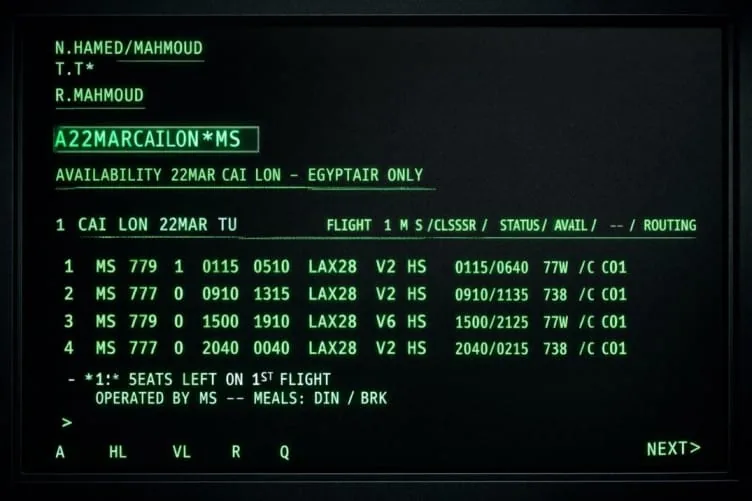
| A22MARCAILON | General availability from CAI to LON |
| A20NOVCAILON.D | General availability from CAI to LON, direct only |
| A22MARCAILON*MS | Carrier-specific display, airline is MS |
New to availability displays? Read Galileo for beginners: flight availability search.
6. Sell and Waitlist from Availability
SellingOnce you have an availability display, use the sell entries to add segments into the PNR. The number after N is the passenger count, followed by the booking class and the availability line number.
| Command | Description |
|---|---|
| N2F3 | Sell 2 seats in F class from line number 3 |
| N1Y3* | Sell 1 seat from line 3 and connecting flights |
| N1Y1LL | Waitlist 1 seat, Y class, line 1 |
| N1Q1LL* | Waitlist 1 seat in Q class, line 1, and connecting flights |
| N2Q3AK | Add a segment in Q class from line 3 of an availability display when already booked with the airline for 2 passengers |
| @2/3 | Change segment number 2 to 3 passengers (before End Transact) |
| @A/J | Re-book the entire air itinerary to J class |
| 0A OR Y | Arrival Not Known (ARNK) or surface sector |
If you use ARNK segments, see our dedicated guide: how to use ARNK in Amadeus, Sabre and Galileo.
7. Direct Sell Commands
SellingDirect sell entries bypass the availability display and add a segment straight into the PNR when you already know the exact flight, date and class.
| Command | Description |
|---|---|
| 0MS777Y12MARCAILHRNN1 | Direct sell with class as Y |
| 0MS911M11OCTCAIDXBLL1 | Direct sell for waitlist, class as M |
| 0TK693Y12NOVCAIISTAK1 | Selling a passive segment, status HK |
| 0TK693Y12NOVCAIISTAL1 | Selling a passive segment, status HL |
| 0TK693Y12NOVCAIISTAK1/03550610 | Add a passive segment with timings |
8. Name Field Entries
PNR FieldsName entries always use surname first, followed by a slash and the given name. Passenger types (child, infant) and group names use their own qualifiers.
| Command | Description |
|---|---|
| N.ALI/MOHAMED MR | Enter name with surname first |
| N.2SMITH/JOHNMR/KATHYMRS | Enter 2 passengers with same family name |
| N.ALI/HASSAN*P-C06 | Child, 6 years old |
| N.I/ALI/SALLYMISS*09NOV12 | Infant name with DOB (mandatory) |
| N.G/25GROUPNAME | Enter group name |
| N.P1@ | Delete name of passenger 1 (before ending BF) |
For passenger type conventions, see how to add passenger types in Galileo GDS. For infant bookings with a seat, read how to book an infant with a seat (INS) in Amadeus, Galileo and Sabre. For group bookings, see how to issue a group Umrah ticket on Galileo.
9. Phone Field Entries
PNR FieldsPhone entries use city or type codes: T for telephone, M for mobile, H for home, B for business. Each field can be deleted or replaced by line number.
| Command | Description |
|---|---|
| P.CAIT*ABC TRAVELS 22045698 | Add phone number |
| P.CAIM*010077778882 | Add mobile phone number |
| P.2@ | Delete 2nd phone field |
| P.2@CAIH*03 8777777 | Change 2nd phone field |
For a full walkthrough of contact entry, read how to add contact details in Amadeus, Galileo and Sabre.
10. Ticketing Arrangement Field
PNR FieldsThe ticketing arrangement field defines when and how the ticket should be issued. It is mandatory for most bookings before ticket issuance.
| Command | Description |
|---|---|
| T.T* | Minimum ticketed entry |
| T.@ | Delete ticketing field |
11. Form of Payment (FOP)
PNR FieldsForm of payment entries record how the ticket will be paid for — cash, invoice or credit card. They must match the actual method used at ticketing.
| Command | Description |
|---|---|
| F.S | FOP cash |
| F.INV | Free-text FOP invoice with mandatory free text (max 38 characters) |
| F. 373900000000000*D1215 | FOP credit card |
12. Received From Field
PNR FieldsThe received-from field records who authorised the booking — usually the passenger or the agent’s initials.
| Command | Description |
|---|---|
| R.IN | Receiving with initials (minimum 1 character after the dot) |
13. Cancel and Update Segments
ModificationsCancellation entries remove segments from the itinerary, while update entries change status codes on segments and SSRs.
| Command | Description |
|---|---|
| X2 | Cancel segment 2 |
| X1-3.6 | Cancel segments 1 to 3 and 6 |
| XI | Cancel entire itinerary |
| XA | Cancel air segments only |
| @1I | Ignore segment 1 from auto fare quote |
| @1XK | Update HX, UC, NO segment |
| @1HK | Change segment 1 from KL, KK, TK to HK |
| @ALL | Update all segment and SSR status codes from KK to HK |
14. APIS, DOCS and Secure Flight Data
ComplianceAPIS and DOCS entries transmit passport and identity data to the operating carrier. They are mandatory for travel to and from many countries.
| Command | Description |
|---|---|
| SI.P1/SSRDOCSMSHK1/P/EG/S12345678/EG/12JUL76/M/23OCT16/MOHAMED/HASSAN | Enter DOCS data |
| SI.1@ | Delete DOCS item number 1 |
For the full process, read how to add passport data in Amadeus, Galileo and Sabre.
15. Mileage Membership Field
LoyaltyFrequent flyer entries attach loyalty numbers to individual passengers or to the whole PNR.
| Command | Description |
|---|---|
| M.MS1234567 | Enter MS mileage membership number (single passenger) |
| M.P2/LH1234567 | Enter LH mileage membership number for passenger 2 |
| M.P1@ | Delete mileage number for passenger 1 |
| M*BA | Display mileage membership agreement of BA |
For a cross-GDS walkthrough, see how to add a frequent flyer in Amadeus, Galileo and Sabre. Our related lesson is here: Lesson 5 — adding a frequent flyer card.
16. Listings of Booking Files
ReportingListings let you review bookings by date, carrier or date range — useful for daily operations and airline reporting.
| Command | Description |
|---|---|
| LD/ALL/28DEC-D | List all segments for 28DEC and display |
| LD/ALL/28DEC-Q/75 | Demand list entry for 28DEC and send to queue 75 |
| LD/ALL/MS/01DEC*31DEC-D | List all MS bookings by date range and display |
17. Past Date Retrieval
RetrievalPast date retrieval pulls historical bookings back into your work area — essential for refunds, reissues and audit checks.
| Command | Description |
|---|---|
| PQ/R-QS71JL | Retrieval by Galileo PNR |
| PQ/R-QS71JL/*CONFIRM | After the asterisk, type CONFIRM, tab to the relevant booking and press Enter |
| Q/1*CPD | Retrieve the booking file when it is available |
For a full walkthrough, see how to retrieve a past date booking in Galileo.
18. Claim PNR
RetrievalClaim entries let you take ownership of a booking held in an airline’s system — common when a carrier creates a direct booking and you need to service it.
| Command | Description |
|---|---|
| C/MS*ABCDEF | Retrieve PNR from carrier MS using record locator |
| C/MS/OK | Confirm claim |
| ES/PXXXX-B | Egypt Air must enter this in the PNR at their end to give claim authority (XXXX = Galileo PCC) |
Related: how to transfer a PNR in Galileo, Amadeus and Sabre.
19. Currency Conversion
UtilitiesCurrency conversion entries calculate exchange amounts at the banker’s selling rate — useful for manual fare builds and client quotes.
| Command | Description |
|---|---|
| FZSUSD100EGP | Convert USD 100.00 to EGP at banker’s selling rate |
For more examples, see the GDS currency conversion commands guide and the GDS calculator guide.
20. Vendor Remarks
CommunicationVendor remarks send free-text messages to a specific airline within the PNR. They are commonly used for special handling requests and internal notes to the carrier.
| Command | Description |
|---|---|
| V.AMS*FREE FORM | Send vendor message to airline MS |
| V.1@ | Delete 1st vendor message |
| *VR | Display all vendor remarks |
21. Special Service Requests (SSR)
ServicesSSR entries request services such as wheelchairs, special meals and assistance. They are sent to the operating carrier and confirmed separately from the flight segment.
| Command | Description |
|---|---|
| *SVC | Display services for all booked segments |
| SI.P1/WCHR | Wheelchair for passenger 1 |
| SI.P1/DBML | Diabetic meal for passenger 1 |
| SI.S2@ | Delete all SSR from segment 2 |
Related guides: difference between WCHC, WCHR and WCHS and airline special services — wheelchairs.
22. Other Supplementary Information (OSI)
InformationOSI entries send supplementary information to airlines that does not require a formal service request — for example a child’s date of birth or a specific remark.
| Command | Description |
|---|---|
| SI.MS*P2/CHLD12MAR08 | Advise all airlines of the DOB of passenger 2 |
| SI.2@ | Delete item 2 from OSI |
23. End Transact Entries
Session BasicsEvery PNR change ends with an End Transact or Ignore entry. These confirm (save) or discard the changes you just made.
| Command | Description |
|---|---|
| E | End transaction |
| I | Ignore transaction |
| ER | End and retrieve same |
| IR | Ignore and retrieve same |
24. Booking History
AuditHistory entries show every change made to a booking — essential for dispute resolution, ADM defence and audit trails.
| Command | Description |
|---|---|
| *HQT | Display queue trail history |
| *HTD | Ticketing data history |
| *HIA | Air segment history |
| *HFF | Filed fare history |
Related: what causes ADMs in airlines — full guide for travel agencies.
25. Divide Booking File
ModificationsDividing splits a PNR into separate records — used when passengers in the same booking need to be handled independently.
| Command | Description |
|---|---|
| DP1 | Divide passenger 1 (or DP3 .5 to divide passengers 3 and 5) |
| R.P | Add receive field |
| F | File (other half of the PNR will be displayed) |
| R.P | Add receive field |
| ER | End and retrieve booking file |
For the full cross-GDS procedure, see split PNR commands in Amadeus, Galileo and Sabre. To copy a booking instead, see how to clone a PNR in Amadeus, Galileo and Sabre.
26. Queue Commands
WorkflowQueues are the backbone of daily agency workflow in Galileo. They route bookings to the right person or department and ensure nothing gets missed.
| Command | Description |
|---|---|
| QPB* | Display queue preference list |
| QCA | List of all queues |
| Q/16 | Sign on to queue 16 |
| QEB/70 | Send booking file to queue 70 |
| QEB/XXX/35 | Place BF on queue 35 at branch XXX |
For a complete workflow, read a simple guide to Galileo queues for agents.
27. Email Itinerary
DeliveryGalileo emails itineraries and e-ticket receipts directly from the PNR. Add the email address with MT., then send with EM or one of its variants.
| Command | Description |
|---|---|
| [email protected] | Add an email-to address |
| MT.1@ | Delete item 1 from the email-to address |
| R.P | Receive |
| EM*ETR | End and send the electronic ticket receipt by email |
| EM*NL | With no Viewtrip links |
| EMALL | Send email to all email addresses |
| ERMALL | Send email to all email addresses and retrieve |
For the full cross-GDS walkthrough, see how to send itineraries via Amadeus, Galileo and Sabre.
28. Itinerary Remarks
PNR FieldsItinerary remarks add free-text notes that are not associated with a specific segment — useful for client notes and internal reminders.
| Command | Description |
|---|---|
| RI.FREE FORM | Create unassociated remarks (max 70 characters) |
| RI.1@ | Delete unassociated remarks item 1 |
29. Retrieval of Booking Files
RetrievalRetrieve records by record locator, passenger name or group name.
| Command | Description |
|---|---|
| *N36FVI | Retrieve BF using Galileo record locator |
| *-SMITH | Retrieve by name |
| *-G/EGYPARTY | Retrieve group booking by group name |
30. Local Time and Maps
UtilitiesQuick reference entries for local time checks and country maps.
| Command | Description |
|---|---|
| @LTLHR | Local time in London |
| C*MAP/Saudi Arabia | Display map for a specific country |
31. Display Entries
DisplayDisplay entries let you view a single field of the PNR instead of scrolling through the entire record. They save significant time during servicing.
| Command | Description |
|---|---|
| *ALL | Display all BF data |
| *N | Display name field |
| *VL | Display vendor locator |
| *I | Display itinerary |
| *FF | Display filed fare |
| *MM | Display mileage membership field |
| *SI | Display OSI/SSR field |
| *H | Display history |
32. Fare Display
FaresFare Display entries show published fares between city pairs, with optional ticketing date qualification for historical comparisons.
| Command | Description |
|---|---|
| FDCAIDXB/MS | Host normal adult fare |
| FDCAI10JUN14DXB/MS.T30MAY14 | Past date fare display with ticketing date |
33. Fare Shopper — Inside and Outside a Booking
FaresFare Shopper entries search for the best available fare across carriers and routings, with or without an existing itinerary.
| Command | Description |
|---|---|
| FSA | Shop regardless of availability |
| FSALL | Shop all segments, including waitlist and unconfirmed |
| FSCAI10JANDXB | One-way journey |
| FS2CAI10JANDXB20JANCAI | Round-trip journey for 2 passengers |
| FSCAI10JANDXB20JANDXB/CMS | Round-trip journey with specific carrier BA |
| FSCAI10JANKUL–BKK20JANCAI | Surface sector |
For a broader command tutorial, see the Galileo FS command guide for Smartpoint.
34. Fare Quotes
FaresFare quotes price an existing PNR or selected segments. They can be filtered by passenger, segment, carrier and historical ticketing date.
| Command | Description |
|---|---|
| FQP1 | Fare quote for specified passenger number 1 |
| FQS1-3.6 | Fare quote for segments 1 to 3 and 6 |
| FQCMS | Fare quote as booked on carrier MS |
| FQ/CMS/ACC | Fare quote CHD only in the PNR (accompanied adult is in a separate PNR) |
| FQ.H29DEC13/CGF | Past date historical fare quote per ticketed date (taxes as of today) |
| FQ.T12JAN13/CMS | Past date historical fare quote per ticketed date |
| FQCGF@MOWSA | Fare quote by carrier and specified fare basis |
| FQA | Fare quote alternative fare; to select fare #2 enter FF2 |
| FQBB | Fare quote best buy |
| FQBB/S1.3/CMS | Fare quote best buy, segments 1 and 3, carrier MS |
| FQBA | Fare quote best buy irrespective of availability |
| FQBB++-FIRST | Fare quote best buy, first class |
| FQBB++-BUSNS | Fare quote best buy, business class |
| FQBB++-AB | Fare quote best buy as cabins actually booked |
35. Cancel and Restore Fare
FaresCancel and restore entries manage filed fares in the PNR — used when repricing or correcting fare errors.
| Command | Description |
|---|---|
| FXALL | Cancel all filed fare (un-ticketed) |
| @1S | Cancel filed fare (ticketed) |
| FX1 | Cancel filed fare number 1 |
| FX1P2 | Cancel filed fare 1 for passenger 2 |
| FF1@R | Restore fare 1 (ticketed only, fare not guaranteed) |
| FF1P3@R | Restore fare 1 for passenger 3 |
36. Fare Quote Planner
FaresThe fare quote planner prices un-booked routings — useful for quotes before any PNR exists.
| Command | Description |
|---|---|
| FQPCAI+MSDXB+MSCAI | Quote for un-booked routing for Egypt Air, any class, adult |
| FQPCAI+MSDXB+MSCAI/CMS*C07 | Quote for un-booked routing for Egypt Air, any class, child |
| FQPCAI+MSDXB+MSCAI/CMS*INF | Quote for un-booked routing for Egypt Air, any class, infant |
| FQPCAI1JUL14+MSDXB12JUL14+MSCAI.T10APR14 | Past ticket date and past travel dates |
| FQP CAI.Q+MSDXB.M+MSCAI/CMS | Use the class qualifier to quote a fare for a specified carrier |
37. Create Manual Fares
FaresManual fare build entries construct a fare from scratch when automatic pricing is not available or does not produce the correct result.
| Command | Description |
|---|---|
| FBC | Fare build create |
| FBCP2 | Fare build create for passenger 2 |
| FBCP1/S1.4 | Fare build create for passenger 1, segments 1 and 4 |
| FBUFARE/EGP2000.00 | Fare build update, currency and amount |
| FBUFB/USIEG+TAX1/11.00XL+TAX2/300.00CP | Fare build update with fare basis and taxes |
| FBUROE/3.75+BG/20K | Fare build update, ROE and baggage |
| FBUFC/CAI MS DXB | Fare construction |
| FBUTTL/ | Fare build total update |
| *FB | Redisplay fare build |
| FBF | File built fare |
| FBFALL | File built fare for all passengers |
If the fare includes complex taxes, see how to handle more than 20 taxes in Galileo GDS.
38. Ticket Issuance
TicketingTicket issuance entries print tickets based on the filed fare, with optional qualifiers for form of payment, tour codes and commission.
| Command | Description |
|---|---|
| TKP/FS/Z0 | Print ticket and itinerary for all filed fare (FOP cash) (0 commission) |
| TKP1P2.4/FS/Z0 | Print ticket for filed fare 1, passengers 1 and 4 (FOP cash) (0 commission) |
| TKP/FS/TCCAIEG003/Z0 | Print ticket with tour code (FOP cash) (0 commission) |
To void a ticket immediately after issuance, see how to void tickets in Sabre and Galileo. For refunds, read how to process a manual refund and void vs refund in aviation.
39. E-Ticket Interline Agreement Check
Ticketing ComplianceInterline checks confirm which airlines you can use as a plating carrier before issuing a multi-carrier ticket.
| Command | Description |
|---|---|
| DT/IAT/DISMS | Display interline table by validating carrier BA |
| DT/ETE0 | Verify which airline you can use as a plating carrier |
40. E-Ticket Display, Void, Refund and Revalidation
TicketingThese entries cover the full e-ticket lifecycle after issuance — display, void, exchange, revalidation, refund and reprint of support documents.
| Command | Description |
|---|---|
| *TE/0771234567890 | Display E-ticket |
| *HTE | Display E-ticket from a booking file |
| TRV/07712345678904 | Void E-ticket |
| TRVE/0771234567890 | Void exchange / reissue ticket (not all airlines allow) |
| TSD0779900842346 | Reprint support documents |
| TKRETS1/TN1761234567890/C1 | Revalidate E-ticket, segment 1 and coupon 1 |
| TKRETS1/TN1761234567890/C1/NVB13FEB15/NVA13FEB15 | Revalidation with NVB and NVA dates |
| TKRETS1/TNIN1761234567890/C1 | Revalidate infant ticket |
| TRNE0771234567890/14APR14 | Refund E-ticket with issuing date |
| TSDR0771234567890/26JAN | Reprint refund notice (only 7 days from date of refund) |
| TRNC0771234567890 | Cancel refund on same day (not all airlines allow) |
Related: reissue vs revalidation — how to check if airline accepts revalidation.
41. TINS, Printer Linkage and Stock Tables
ReportingTINS reports show ticketing activity for the day or a date range, and printer linkage entries configure where tickets print.
| Command | Description |
|---|---|
| HMPR | Display today’s TINS report (sales report) |
| HMPR/PCC | Display today’s TINS report for branch office |
| HMPR/01OCT | Display TINS report for another day |
| HMPR/01OCT-08OCT/REF | Display refund ticket with date range |
| HMPR/01OCT-08OCT/VOID | Display void ticket with date range |
| HMLD | Check your link status |
| HMLMDBECE2DT TKT | GTID DBECE2 as TKT |
| HMLMDBECE3DI ITN | GTID DBECE3 as ITN |
| HMOMDBECE3 -U | GTID DBECE3 as UP |
42. EMD-S (Electronic Miscellaneous Document)
AncillariesEMD-S entries issue receipts for ancillary services such as change fees, extra baggage and seat purchases. They are added as a service segment in the PNR, then issued as a separate document.
| Command | Description |
|---|---|
| 0SVCBAEK1LHR15JAN-N1/D/992/CHANGE FEE/300.00 | Add mandatory service segment to issue EMD-S for BA at LHR for travel date 15JAN, passenger 1, for a date change penalty of EGP 300.00 |
| EMDI/SM1/FS/IC1251234567890/PI-R | Print EMD customer receipt |
| EMDI/SM1/FS/IC1251234567890/PE-R | Email EMD customer receipt (SM1 = service segment added in the PNR, IC1251234567890 = related ticket number) |
| EMDV1259991000826 | Void the EMD-S |
For a full walkthrough across hosts, see how to issue EMD services in Amadeus and Galileo.
Best Practices for Daily Galileo Use
- Learn the display entries first.
*N,*I,*FFand*SIsave more time than any other group of commands. - Use queues religiously. Every booking that needs action should be queued to the right person, not left in a work area.
- Check history before making changes.
*Hreveals what previous agents did, preventing duplicate work. - Validate connections with
@MT. Never assume a connection is legal — check it against the airport MCT. - Save the PNR before emailing. Galileo reads the stored email address, so
ERmust come beforeEM. - Always rebuild the ticketing arrangement. It never carries over when you clone or split a booking.
- Keep your encode/decode commands close.
.CE,.CD,.AEand.ADare used dozens of times a day. - Watch the date format. Galileo uses
DDMMMthroughout — a missed month abandons an entire availability search.
Frequently Asked Questions
What is the difference between E and ER in Galileo?
E ends the transaction without redisplaying the PNR, while ER ends the transaction and retrieves the same booking so you can verify the change was saved correctly.
How do I send an itinerary by email in Galileo?
First add the email address with [email protected], then save the PNR with ER. Finally send with EM (first email address) or ERMALL (all email addresses). See how to send itineraries via Amadeus, Galileo and Sabre.
What does N1Y1LL mean?
It sells 1 seat in Y class from availability line 1 with waitlist status (LL). The general format is N + number of passengers + booking class + availability line number + status qualifier.
How do I cancel an entire itinerary?
Use XI to cancel the entire itinerary, or XA to cancel air segments only. To cancel a specific segment, use X followed by the segment number.
How do I retrieve a past-date booking?
Use PQ/R- followed by the Galileo record locator, then confirm with *CONFIRM. For the full procedure, see how to retrieve a past date booking in Galileo.
How do I split a PNR in Galileo?
Use DP followed by the passenger number (for example DP1), then file the record with F and end the other half with ER. For details, see split PNR commands in Amadeus, Galileo and Sabre.
Where can I practise these commands safely?
Use your GDS training mode or a dedicated training PCC. The GDS training hub includes structured lessons, and you can test your knowledge with the Galileo exam.
Final Thoughts
Galileo rewards agents who memorise its mnemonic structure. Every command in this guide is built from a consistent pattern — learn a few entries in each group and the rest become predictable.
Start with the display entries (*N, *I, *FF, *SI) and end-transact basics (E, ER, I, IR). Once you’re comfortable, add availability and selling, then move on to fare quotes and ticketing. Within a few weeks you will use these entries without thinking.
The golden rule: the fastest agent is not the one who types the most, but the one who knows the shortest entry for every task.
Keep Building Your GDS Skills
Explore more command references, step-by-step tutorials and practice exams on GDS Hub.