How to Add Contact Details in Amadeus, Galileo & Sabre (CTCM & CTCE)
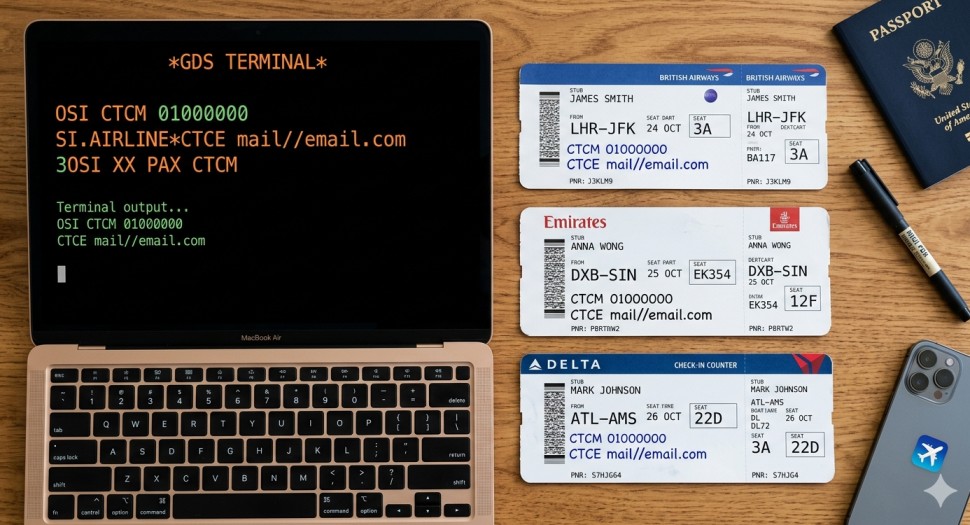
You still need to manually add a passenger’s mobile and email into the PNR. Not for marketing. For flight updates, irregular operations (IROPS), and check-in alerts.
Each GDS does it differently. Below is the exact syntax for Amadeus, Galileo, and Sabre. No extra words.
Why this matters: IATA Resolution 830d requires travel agents to collect and provide passenger contact information. Airlines use CTCM (Contact Mobile) and CTCE (Contact Email) to notify passengers about schedule changes, cancellations, gate changes, and check-in alerts.
1. Amadeus
Add Mobile (OSI Format)
AMADEUS · OSI
OS CTCM 01000000
No spaces, no plus sign. Just numbers.
Add Mobile (SSR Format — Preferred by Many Airlines)
AMADEUS · SSR
SR CTCM-00000000
Add Email (OSI)
AMADEUS · OSI
OS CTCe mail//email.com
Add Email (SSR)
AMADEUS · SSR
SR CTCe-mail//email.com
Real-world tip: Use SR for email. OSI sometimes gets ignored.
2. Galileo
Add Mobile
GALILEO · SI
SI.AIRLINE*CTCM 000000
Example: SI.MS*CTCM 97123456789
Add Email
GALILEO · SI
SI.AIRLINE*CTCE mail//email.com
Example: SI.MS*CTCE mail//client//hotmail.com
Important: The airline code is mandatory. Do not skip it.
3. Sabre
Add Mobile (OSI)
SABRE · OSI
3OSI AIRLINECODE PAX CTCM 0000000
Example: 3OSI EK PAX CTCM 442012345678
Add Email (OSI)
SABRE · OSI
3OSI AIRLINECODE PAX CTCE mail//email.com
Add Mobile via SSR (Same for Email)
SABRE · SSR
3SR AIRLINECODE PAX CTCM 0000000
3SR AIRLINECODE PAX CTCE mail//email.com
Pro tip: Sabre agents usually stick to 3OSI. Faster to type.
Quick Reference Table
Bookmark this table for quick access during your daily work.
| GDS | Code Type | Purpose | Syntax (Short) |
|---|---|---|---|
| Amadeus | OSI | Mobile | OS CTCM 01000000 |
| Amadeus | SSR | SR CTCe-mail//x@y.com | |
| Galileo | SI | Mobile | SI.*CTCM 000000 |
| Galileo | SI | SI.*CTCE mail//x@y.com | |
| Sabre | 3OSI | Mobile | 3OSI XX PAX CTCM 000 |
| Sabre | 3OSI | 3OSI XX PAX CTCE mail//x@y.com |
Related reading: For a complete reference of all GDS commands, see the Ultimate Amadeus Commands Guide, Ultimate Galileo Commands Guide, and Sabre Commands Complete Reference.
Two Rules That Never Change
1. CTCM = mobile / phone
2. CTCE = email
2. CTCE = email
And always remember: use // instead of @ in email addresses.
That is it. Save this page. You will need it again next week.
Frequently Asked Questions
What is the difference between CTCM and CTCE?
CTCM stands for Contact Mobile — it is used to add a passenger’s mobile or phone number to the PNR. CTCE stands for Contact Email — it is used to add a passenger’s email address. Both are SSR codes used by airlines to contact passengers for flight updates, irregular operations (IROPS), and check-in alerts.
How do I add a mobile number in Amadeus?
In Amadeus, use
OS CTCM followed by the mobile number in OSI format (example: OS CTCM 01000000) or SR CTCM- followed by the number in SSR format (example: SR CTCM-00000000). Do not include spaces or the plus sign.How do I add an email address in Amadeus?
In Amadeus, use
SR CTCe-mail//email.com for the SSR format. Replace the @ symbol with //. For example: SR CTCe-mail//john//gmail.com. The OSI format OS CTCe mail//email.com is also available but is often ignored by airlines.How do I add contact details in Galileo?
In Galileo, use
SI.AIRLINE*CTCM followed by the mobile number (example: SI.MS*CTCM 97123456789) and SI.AIRLINE*CTCE mail//email.com for email (example: SI.MS*CTCE mail//client//hotmail.com). The airline code is mandatory and must not be skipped.How do I add contact details in Sabre?
In Sabre, use
3OSI AIRLINECODE PAX CTCM followed by the mobile number (example: 3OSI EK PAX CTCM 442012345678) and 3OSI AIRLINECODE PAX CTCE mail//email.com for email. Most Sabre agents stick to the 3OSI format as it is faster to type than the SSR format.Why do airlines require passenger contact details in the PNR?
Airlines require passenger contact details (CTCM and CTCE) in the PNR for flight updates, irregular operations (IROPS) notifications, schedule changes, gate changes, and check-in alerts. This is mandated by IATA Resolution 830d, which requires travel agents to collect and provide passenger contact information.
Why do I use // instead of @ in CTCE entries?
GDS systems use the @ symbol for internal system commands, so it must be replaced with // in CTCE email entries. For example,
john@email.com becomes john//email.com in the PNR.📚 Related Guides
GDS Guide
How to Add Contact Details in Amadeus, Galileo & Sabre
GDS Guide
How to Add a Frequent Flyer in Amadeus, Galileo & Sabre
GDS Guide
How to Add Passport Data in Amadeus, Galileo & Sabre
Reference
The Ultimate Amadeus Commands Guide
Reference
The Ultimate Galileo Commands Guide
Reference
Sabre Commands: Complete Reference
Practise Adding Contact Details in a Safe Simulator
Create a free GDS HUB account and practise adding CTCM and CTCE contact entries in Amadeus, Galileo and Sabre — no live data, no risk.
Start Practising Free →