Amadeus Queues Guide: Numbers, Commands & Categories Explained
If you work with Amadeus GDS, you’ve likely heard of queues. However, many agents don’t fully grasp their value. This guide will explain what Amadeus queues are, why they matter, and how to effectively use them in your daily tasks.
Amadeus queues are one of the most powerful productivity tools in the system — but only if you know how to use them properly. Let’s break it down in a clear, practical way.
What Are Queues in Amadeus?
In Amadeus, queues are organized storage areas where PNRs (bookings) are placed either automatically or manually for follow-up actions.
Think of queues as your to-do list within the system. Instead of checking every booking one by one, Amadeus automatically sends important cases — such as schedule changes, confirmations, or ticketing deadlines — into queues for efficient handling.
Why Are Queues Important?
Queues help you:
- Stay organized and avoid missing important actions — nothing falls through the cracks
- Monitor airline updates like schedule changes proactively
- Manage ticketing deadlines and confirmations — avoid costly ADMs
- Quickly address customer requests — all pending tasks are in one place
- Enhance workflow efficiency within your agency and across teams
Without queues, managing bookings would be disorganized, especially in busy environments. Queues automate the triage process so you can focus on the PNRs that actually need your attention.
Amadeus Queue Numbers and Their Purpose
Here are the key queues you should know. Each queue number corresponds to a specific type of action required in the PNR.
| Queue | ID | Type | Purpose |
|---|---|---|---|
| 0 | GENERAL | Special | General queue — when a specific queue is not specified, PNRs are automatically placed here |
| 1 | CONFO | Dual | Confirmation of segments and services (KK, UU, UN, NO, UC, US status codes) |
| 2 | KL | Dual | Confirmation from Waitlist (KL advice codes, HK status codes) |
| 3 | OPTION | Special | Option elements entered in the PNR |
| 4 | RPCHNG | Special | PNRs whose office responsibility has been transferred to your office |
| 5 | RATES | Special | Rates Queue (not available in all markets) |
| 7 | SKEDCHG | Dual | Schedule Change advised from an airline |
| 8 | TKTG | Dual | Ticketing/Time Limit on the date mentioned in the TK element |
| 9 | OA CTRL | Special | Queuing field on the PNR is that of the airline |
| 12 | XTL | Special | Expired Ticket Time Limit — no timely action has been taken |
| 23 | RQR | Special | Request for Reply — if segment still shows HN status code after 24 hours |
| 80 | PTA | Special | Prepaid Ticket Advice |
| 87 | GRPS | Dual | Group Review |
| 94 | MSG-CP | Dual | Follow-up messages stored in Customer Profiles |
| 96 | MSG-PDR | Dual | Past Dated Records |
| 97 | MSG | Dual | Messages — Delay Date/Time |
How to Display Queues in Amadeus
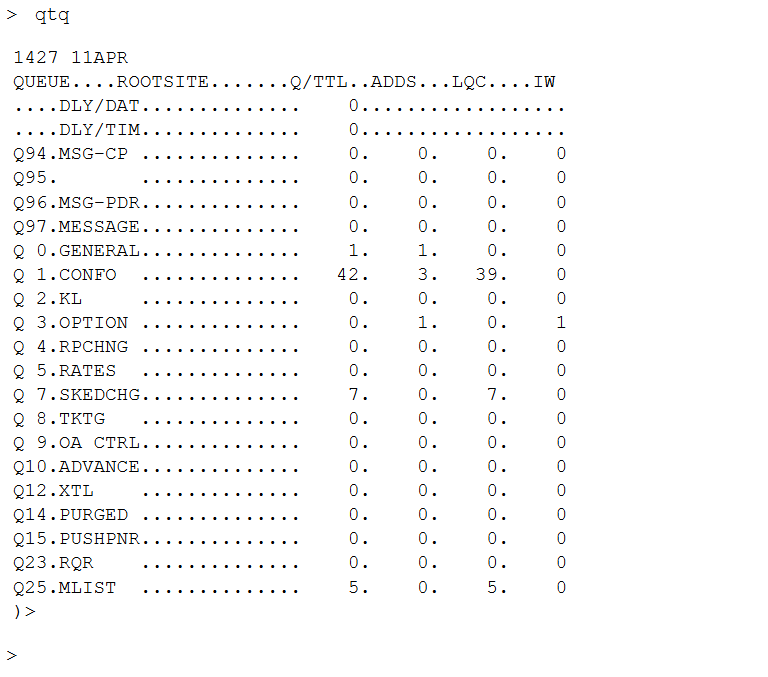
Display Total Queues Without Categories and Date Ranges
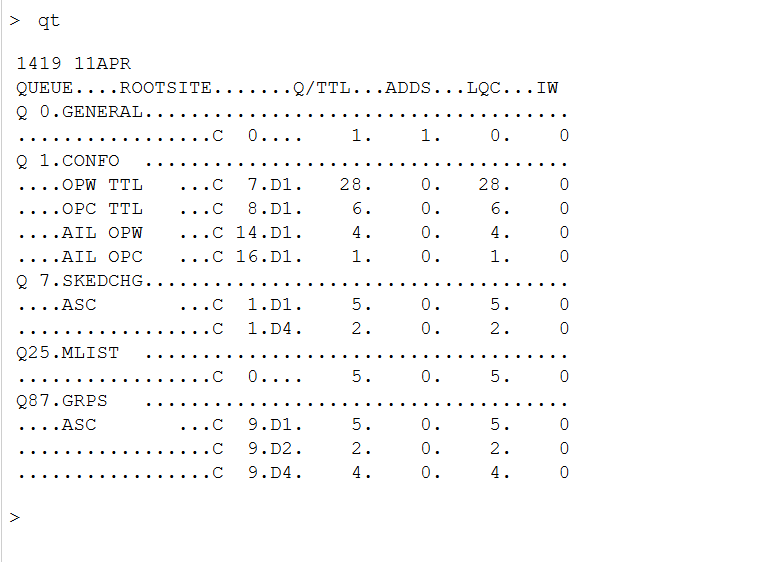
Display Queues That Contain PNRs
How to Open a Queue
To open a queue for processing, use the QS command.
Open a Specific Queue
Open a Queue with a Category
Understanding Queue Categories
Some queues are divided into categories to better organize tasks. Categories are a sub-division that divide PNRs in the same queue according to the exact action required.
Example
- Queue 7 (SKEDCHG) = Schedule Change
- It contains categories (C)
- To open Category 1 inside Queue 7, you use:
QS7C1
Date Ranges Explained
Date ranges divide PNRs in the same queue and category according to the urgency of the action required. This helps agents prioritise the most urgent PNRs first.
| Date Range | Description |
|---|---|
| D1 | Today plus two days in the future |
| D2 | Three to five days from the current date |
| D3 | Six to eight days from the current date |
| D4 | Nine days and beyond from the current date |
QS7C1D1
Working Inside a Queue
Once you enter a queue, like Queue 7 (Schedule Change), you will process PNRs using the following commands.
Basic Queue Commands
Handling PNR Changes
RFM + ER. Without RFM (Received From), the PNR will fail to save.
Advanced Queue Commands
Practical Example: Schedule Change Queue
Queue 7 (SKEDCHG) is crucial. When airlines change flight times, bookings are automatically sent here. Queue 7 is where Amadeus places a PNR when an airline changes its schedule — a retime, a flight-number change, a cancellation, or an equipment swap that affects the booking.
Your Job
- Open the queue —
QS7 - Review the changes — check the new flight times and segment statuses
- Inform the customer or rebook if needed
- Save and remove the PNR from the queue —
RFM+ER, thenQN
Final Thoughts
Mastering queues in Amadeus is vital for any travel agent. It helps you stay organized, avoid errors, and handle bookings professionally.
If you use queues properly, you will:
- Save time — no more manual searching for pending actions
- Reduce errors — the system tracks everything for you
- Improve customer service — proactive handling of schedule changes and deadlines
Frequently Asked Questions
What are queues in Amadeus GDS?
What is the QTQ command in Amadeus?
QTQ is the Amadeus command that displays a summary queue count for all activated queues. It shows you which queues have PNRs waiting without displaying categories or date ranges. Use QT instead if you want to see the queue bank with categories and active items.How do I open Queue 7 in Amadeus?
QS7. To open Category 1 inside Queue 7, enter QS7C1. Queue 7 is where Amadeus places PNRs when an airline changes its schedule — a retime, flight number change, cancellation, or equipment swap.What is the difference between QN, IG and QI in Amadeus?
QN removes the PNR from the queue and displays the next PNR. IG ignores and moves to the next PNR while keeping it in the queue. QI exits the queue completely. Use QIR to ignore and redisplay the PNR outside the queue.What is the difference between a queue and a queue category in Amadeus?
What are Date Ranges in Amadeus queues?
What is Queue 0 used for in Amadeus?
How do I move a PNR to another queue in Amadeus?
QE followed by the destination queue number. For example, QE8 transfers the PNR to Queue 8. To transfer to a specific category, use QE8C1. The PNR must be opened first before transferring.📚 Related Guides
Practise Amadeus Queue Management in a Safe Simulator
Create a free GDS HUB account and practise QTQ, QS7, QN, IG and QI commands in a simulated Amadeus environment — no live data, no risk.
Start Practising Free →